 NexSHOPX-官方新闻
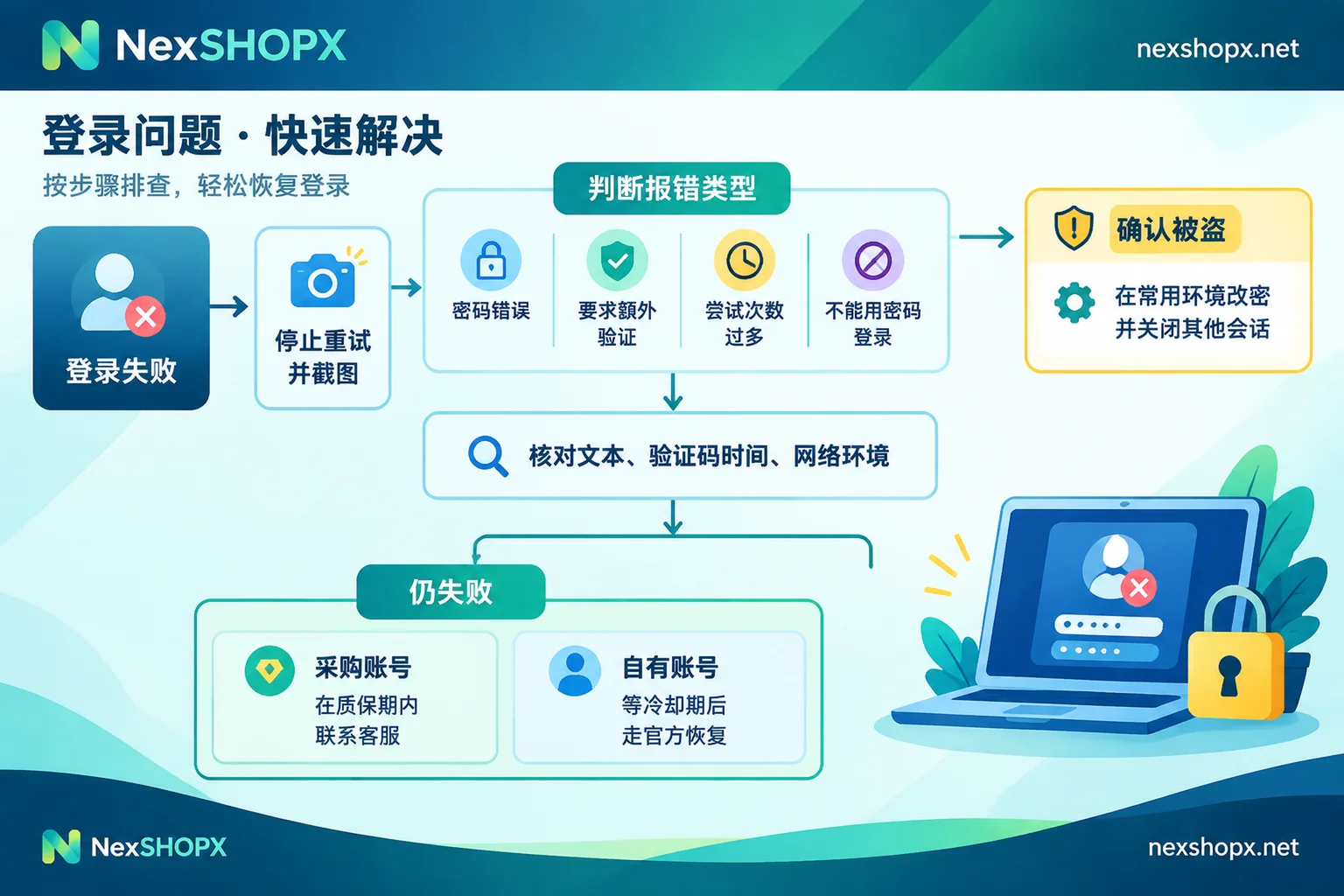
When an account login fails, in most cases you should not immediately change the password or click "Forgot Password" to go through a reset. The correct order is: stop retrying first, then check for copy-paste formatting issues, verification codes, and network environment; if it's a newly purchased account and still within the first-login time limit and warranty period, take a screenshot and contact customer service if you can't figure out the cause—don't change it yourself.
Only a few situations require changing the password as soon as possible, such as when you can confirm the account has been tampered with by someone else. Specific cases are explained separately later in this article.
Why changing the password immediately after a failure can backfire
First, platform risk control may treat it as a risk signal. Platforms like Google, Microsoft, and Meta assess login risk not just by whether the password is correct, but also by device, IP, network type, and operation rhythm. Many login blocks happen because the environment is unfamiliar—such as a new device, data center IP, or abnormal browser fingerprint configuration—while the password itself is fine.
If you retry repeatedly or submit a reset request in the same blocked environment, this sequence looks more like credential stuffing or account theft to the platform and may trigger restrictions like "Too many failed attempts." The account may then enter a cooldown period ranging from hours to days, and sometimes self-service recovery options become temporarily unavailable. A problem that could have been solved by switching environments gets dragged into a lockout.
Second, purchased accounts usually come with warranty terms. Many account categories require completing the first login within a specified time after purchase, and prohibit modifying information during the warranty period, including passwords, backup emails, and security questions. If you change the password yourself without confirming with the seller when you encounter first-login issues, it counts as unauthorized modification and may void your eligibility for replacement or after-sales service during the warranty period. Which categories have this restriction and how long the first-login time limit is depend on each product page—they vary by product.
First, identify which type of error you're seeing
Different error messages point to different stages of the problem, and the handling direction varies significantly:
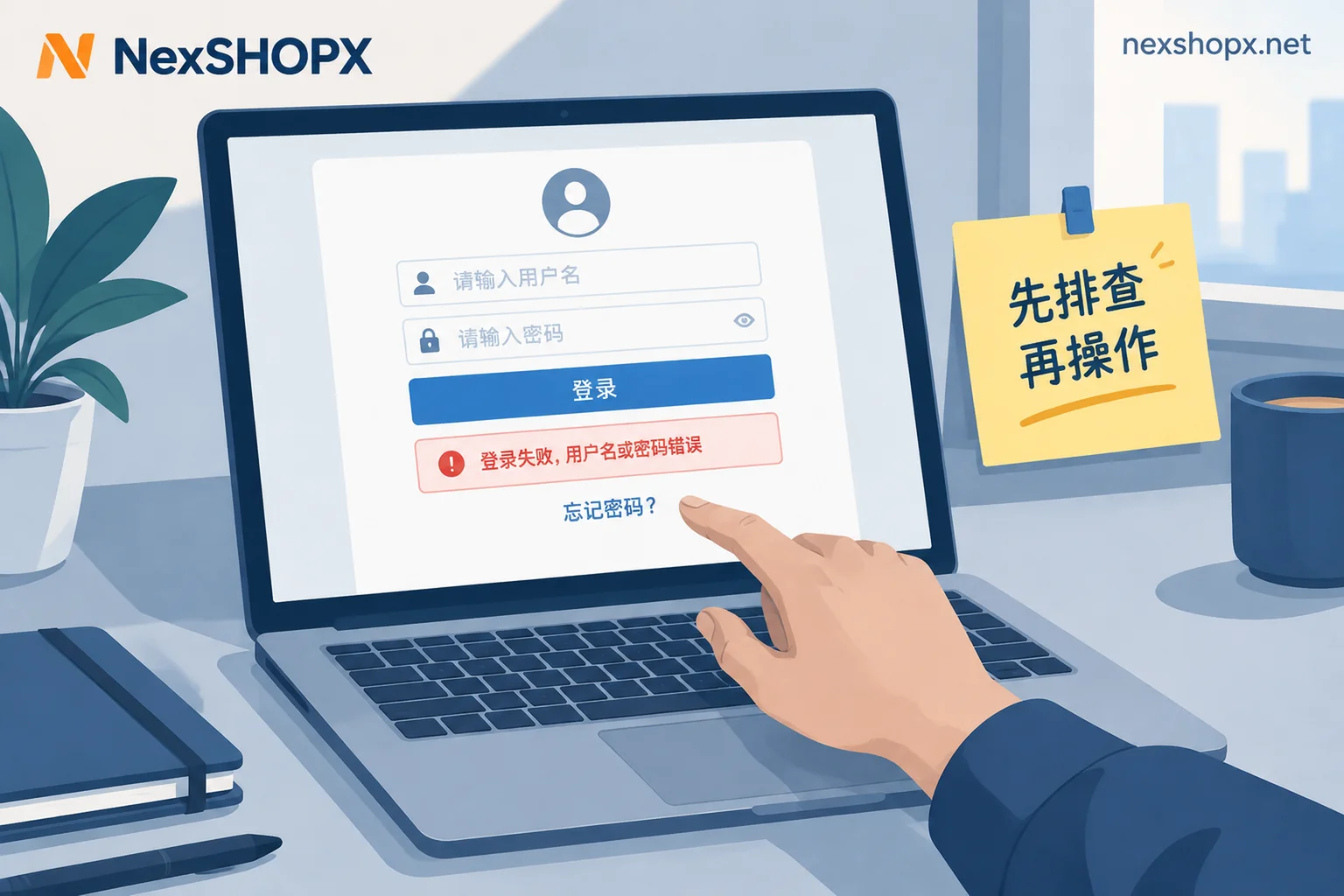
- "Incorrect password" error: Suspect the input process first, not password expiration. Check according to step 2 in the next section.
- Additional verification required, or unusual activity detected: This usually means the password has already been accepted, and the risk control verification is what's blocking you. Changing the password won't solve it. For cases where switching devices triggers verification, see Switching devices triggers re-verification—is that normal?; for not receiving verification codes, see Login requires additional verification but no code arrives?.
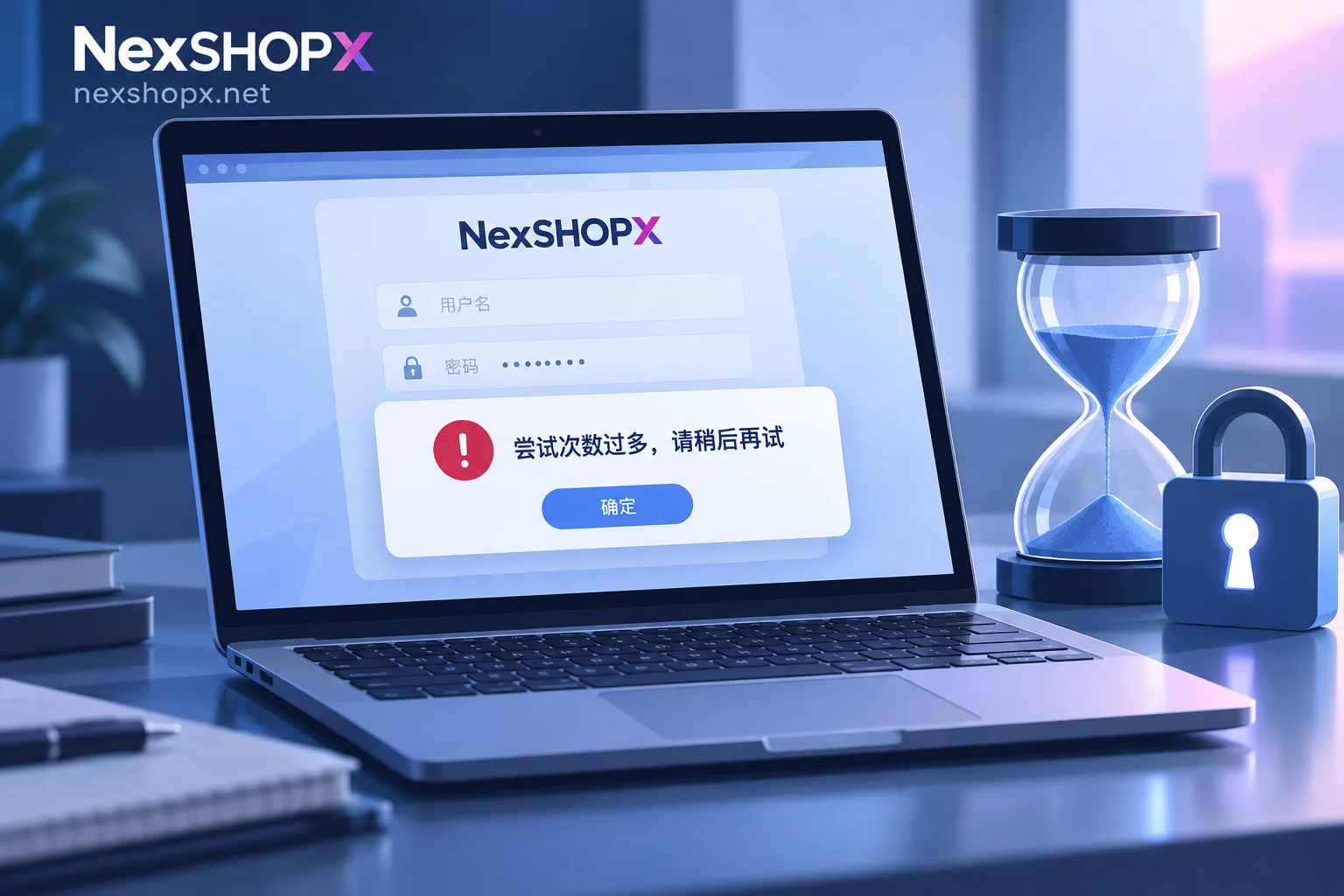
- "Too many attempts, try again later": The account has already entered a restricted state, and retrying will only extend the waiting time. For how long to wait, see How long after a login failure can you try again?.
- "Password login not allowed": The account may only allow other login methods—this has nothing to do with whether the password is correct. See Why does it say password login isn't allowed?.
Troubleshoot in this order
- Stop retrying and gather evidence first. Take a screenshot of the complete error message and the time it occurred. You'll need this whether you recover the account yourself or contact support.
- Verify the text of the account and password. Paste the account and password from the delivery information into a plain text editor like Notepad and check several things: leading or trailing spaces or line breaks, full-width characters, confusion between similar characters like O and 0 or l and I, and whether Caps Lock is on. Avoid copying directly from chat apps or formatted documents into the login field. For more reasons why a correct password still fails, see Password is correct but login keeps failing?.
- Verify two-factor authentication. Codes generated by authenticator apps depend on your phone's time. If your phone's time differs from network time, generated codes will be rejected. Set your phone time to automatic sync and try again. Backup codes are generally single-use; used ones become invalid, so it's best to cross one off as you use it.
- Check network and device environment. Verify several things in order: whether the proxy IP belongs to a data center range or a range flagged by the platform; whether the login region differs significantly from the account's usual region; whether the browser fingerprint environment is configured abnormally; and whether multiple accounts are logged in from the same environment. After troubleshooting, switch to a clean, stable environment and try once—don't keep trying in the original environment.
- If still unable to log in, then decide the next step. If it's a purchased account and still within the first-login time limit and warranty period, contact customer service directly with screenshots—don't change the password or reset it yourself. If it's your own account, wait until the cooldown period ends and go through the platform's official recovery process on your usual device and network.
When you should actually change the password
- You can confirm the account has been tampered with. For example, receiving a password change notification you didn't initiate, a new device login alert, or your backup email was changed. In this case, change the password as soon as possible through the official process on your usual device and network. Changing the password alone isn't enough—other sessions, third-party authorizations, and recovery entry points should also be checked and closed. For details, see Why can they still get in after I changed my password?.
- A purchased account has logged in stably, and the product page allows information changes or the warranty period has passed. At this point, changing the password, backup email, and two-factor authentication is a normal part of handover. But these operations should be done after a successful login in a stable environment, not when login is failing.
- The platform explicitly requires a reset. For your own account, just follow the platform's prompts. For purchased accounts still under warranty, ask customer service first.
When contacting support for a purchased account, prepare these
- Order number and product name
- Error screenshots that clearly show the complete message, the time it occurred, and ideally the IP or region used during login
- What troubleshooting you've already done: whether you verified the text, switched environments, or modified any information
- Order time, to confirm whether you're still within the first-login time limit
If you purchased an account from NexSHOPX, the first-login time limit, warranty duration, and whether replacement is possible after deactivation all depend on the corresponding product page. Some categories have after-sales periods of only a few days, so contact customer service as early as possible when you discover an issue. You can return to the NexSHOPX store to check the description of your purchased product, and for general warranty and after-sales rules, see Terms of Service.


Comments(0)