 NexSHOPX-官方新闻
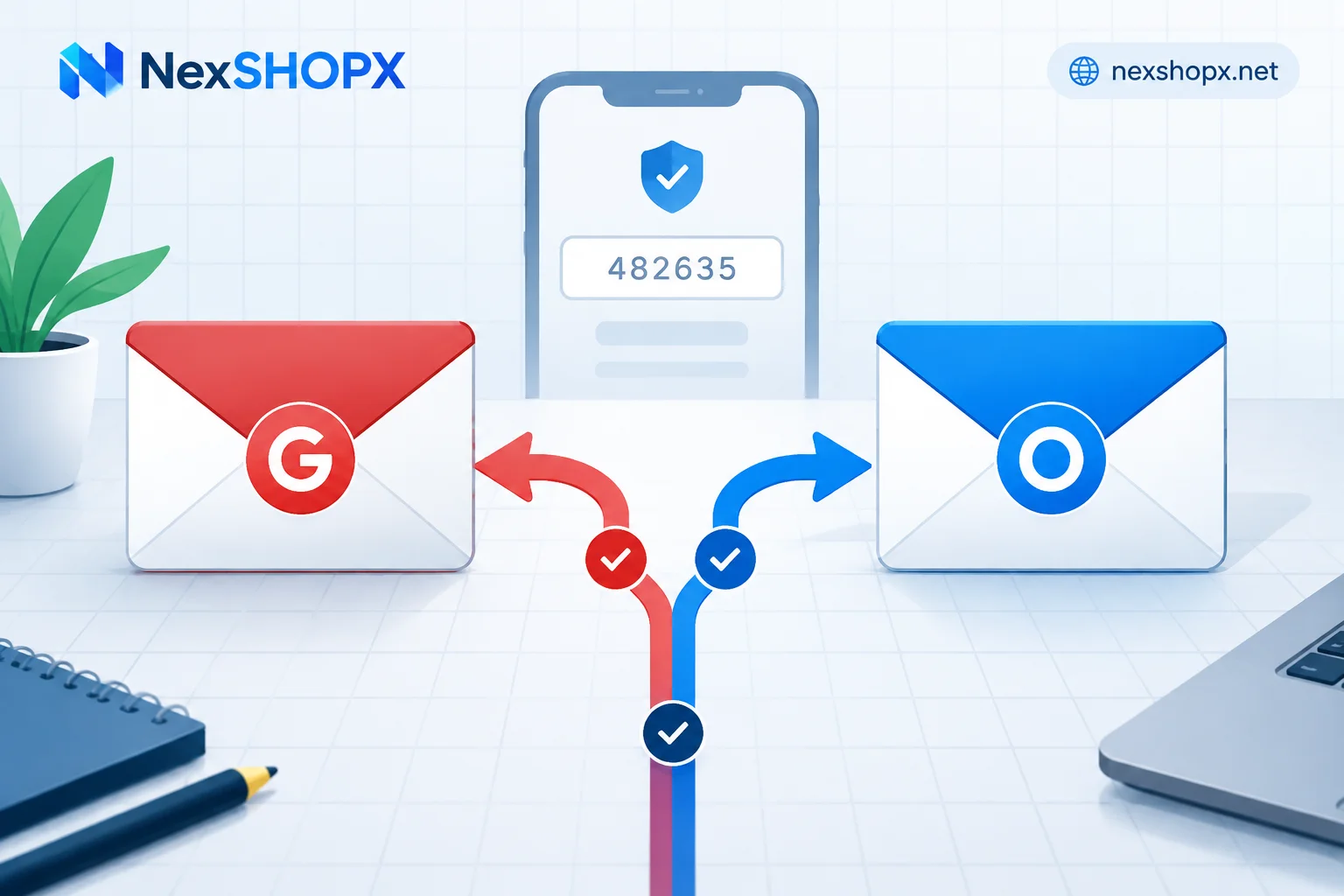
If you're buying an email just to register on other platforms and receive verification codes, first decide based on these three points:
- Target platform has strict risk control, or the account will be bound to payment and used long-term as the main account (AI platforms, Apple ID, overseas payments, primary social media) → buy Gmail.
- You need dozens or hundreds at once, the platform doesn't discriminate against email domains, and losing one doesn't affect business (regular forums, tool registrations, temporary test accounts) → Outlook has a lower unit price and is more cost-effective.
- You plan to use a script to automatically pull verification codes via IMAP/POP3 → first confirm whether your tool supports OAuth 2.0. Microsoft personal email discontinued Basic Authentication on September 16, 2024. Old scripts that directly connect with username and password will fail on Outlook. Gmail still allows app-specific passwords or OAuth after enabling two-step verification. This point is often the final deciding factor.
Below, we explain the differences behind these three points and what to do before ordering and after receiving the account.
Three Things That Determine Your Choice
1. Target Platform's Attitude Toward Email Domains
Gmail has the highest domain weight on mainstream overseas platforms. From AI platforms like OpenAI and Claude to Apple ID, US PayPal, overseas advertising and social media backends, you generally won't be extra scrutinized just for the email suffix. Some platforms with stricter risk control may impose stricter review or even restrictions on new registrations from @outlook.com and @hotmail.com.
Note that this is not "all platforms reject Outlook." Each platform's domain policy varies and changes. The safe approach: first use one account to go through the complete registration process on the target platform, confirm you can receive codes and pass verification, then decide whether to buy in bulk with the same specs. If you're registering for something like a US Apple ID that has requirements for both email and address, you can also check Only for Downloading Region-Limited Apps: Which Spec Apple Account to Buy. Such needs may not require a separate Gmail.
2. Whether Verification Emails Can Reliably Land in the Inbox
This is where Outlook is most likely to fail and hardest to troubleshoot. Microsoft's SmartScreen filtering mechanism is very sensitive to IPs and domains with insufficient sending reputation. Verification emails from third-party platforms may be flagged as spam; worse, they may be rejected at the server level—you won't see any trace even in the spam folder, and you'll just think the platform didn't send it.
Gmail categorizes emails into tabs like "Promotions" and "Social," but transactional verification code emails are rarely silently discarded. For processes that require repeated code retrieval, "being able to find it" is far more important than "accurate categorization."
So if you choose Outlook, your troubleshooting order should change: first check the "Other" and spam folders, then check for any leftover inbox rules or forwarding settings, and finally try another platform to resend for comparison. If you can't receive from several sources consecutively, it's not a matter of luck—it's time to switch email types.
3. Whether You Manually Receive Codes or Scripts Pull Them
When manually receiving codes on a webpage or client, the only differences between the two email types are deliverability and platform compatibility. Once automated, Outlook's barrier is clearly higher: personal email must use Modern Authentication (OAuth 2.0), requiring app registration and authorization flow, and you can no longer feed a username and password to a script.
If your code-receiving tool or collection script still uses the old username/password + IMAP method and you don't plan to modify it, then choosing Gmail for this round is easier. Conversely, if your toolchain already supports OAuth, this point is not an obstacle, and you can go back to comparing cost.
How to Calculate Cost Without Losing Out
Outlook's unit price is low, and its advantage is scale. For matrix business registrations, batch testing, and scenarios with high fault tolerance, using Outlook to spread volume and replacing broken ones results in significantly lower overall cost than using all Gmail.
Gmail's unit price is high; you're buying stability. For accounts bound to funds, business assets, and long-term logins, the small price difference saved can be completely lost once a recovery process is triggered.
A common practical configuration is hybrid: use Gmail for core accounts (payment, ad backends, AI subscription main accounts), and Outlook for peripheral registration, subscription, and trial accounts. Manage them separately—don't let a cheap account become the recovery entry point for core business.
Specs to Confirm When Ordering
Choosing the type is only half the battle; what's delivered determines whether you can actually use it. Before ordering, check these items clearly:
Included information. Just an account and password is not enough. Gmail often requires recovery email verification or 2FA codes when logging in from a new device or different IP. Without these, the account is half-crippled in your hands. Outlook may be temporarily locked and require phone number binding to unlock when flagged as a data center proxy or abnormal fingerprint. So confirm whether the product includes a recovery email, 2FA secret, or backup codes. For criteria, refer to What's the Use of an Account with 2FA and Recovery Email, and What Happens Without Them and Is It Considered Complete Delivery If an Account Only Comes with Username and Password.
New or old account. For pure registration and code receiving, a new account is sufficient; only consider old accounts if the target platform is sensitive to email registration time. Don't default to buying expensive. See What's the Difference Between New and Old Finished Accounts, and How to Choose for details.
In stock or pre-order. In-stock self-service orders ship automatically and can be tested immediately; pre-order items require customer service confirmation before delivery, and timing is not entirely under your control. Before bulk purchasing, clarify which type you're ordering. Refer to What's the Difference Between In-Stock Auto-Delivery and Pre-Order Products.
First-login deadline and warranty rules. A common practice is that first login must be completed within a limited time after ordering, and during the warranty period, disabled accounts can be replaced. But the specific duration and conditions are subject to the product page, and vary by category. One particularly easy trap: some categories do not allow changing account information during the warranty period—if you rush to change the password or recovery email right after receiving the account, you may directly lose the warranty. Read that line on the product page before making changes.
Gmail accounts are in the Google category page. Other specs in the email and platform account group can be compared in the All Categories page. Confirm included information and warranty conditions before ordering.
Also, a boundary note: number-based code receiving, multi-account browser environments, and email alias isolation are not within the scope of account procurement. Don't expect buying an email to solve all these.
Verification to Do in the First Hour After Receiving
Don't rush to put the account into mass production. Run through this sequence:
- Complete first login within the specified time limit, keeping the environment as stable as possible. Don't use a freshly changed proxy node or an IP that is obviously a data center exit. Triggering risk control on the first login is the most troublesome to handle later.
- Confirm the email receiving path works: send a real verification email from a third-party platform, see how long it takes and which folder it lands in. For Outlook, be sure to check "Other" and spam.
- Confirm recovery email and 2FA work: whether the recovery email can receive codes and whether the 2FA secret can generate codes normally. Verify on the spot—don't wait until the platform requires two-factor authentication to find out they don't match.
- Confirm scripts can connect (if you use automation): For Outlook, complete an OAuth authorization to fetch mail; for Gmail, generate an app-specific password or complete OAuth and then pull a test.
- Once all pass, record the account ownership, purpose, and binding relationships, then proceed to actual business. For a complete checklist, follow the Account Delivery Acceptance Checklist.
The purpose of this hour is to expose all problems within the warranty window, not halfway through business two weeks later.
What to Prepare for After-Sales If Problems Arise
Returning an invalid account relies on evidence, not descriptions. Keep in advance: the order number and original delivery content, the time and result of the first login, the full error message or screenshot when it failed (the original platform message is most useful), and what operations you performed. If it's about not receiving verification codes, explain how many different sources you tested and which folders you checked—this is far more effective than just saying "can't receive."
Warranty duration, replacement conditions, and after-sales acceptance windows follow the corresponding product page instructions. They are not uniform across categories. Taking a screenshot when ordering is the easiest way to keep a record.
Summary in One Sentence
First check whether the target platform discriminates against domains, then whether verification emails can be reliably received, and finally whether your code retrieval method is restricted by OAuth—if any of the three points points to Gmail, don't gamble on Outlook to save on unit price; if none of the three are constraints and volume is large, Outlook is the cost-effective one. Confirm specs and stock directly on the Store according to the product page. Buy one or two first to get the process working, then scale up.


Comments(0)