 NexSHOPX-官方新闻
Your password is confirmed correct, but the platform keeps saying "wrong password" or "login failed." Most of the time it is not the password itself. There are five common causes:
- The actual submitted content differs from what you think;
- Multiple retries in a short time triggered a temporary lockout;
- The platform flagged this login as suspicious and requires extra verification;
- The client or protocol you are using does not accept the main password;
- The app has an issue, while the web version works.
Troubleshoot in the order below, complete one step before moving to the next. Do not change several things at once, and do not repeatedly enter passwords before understanding the cause.
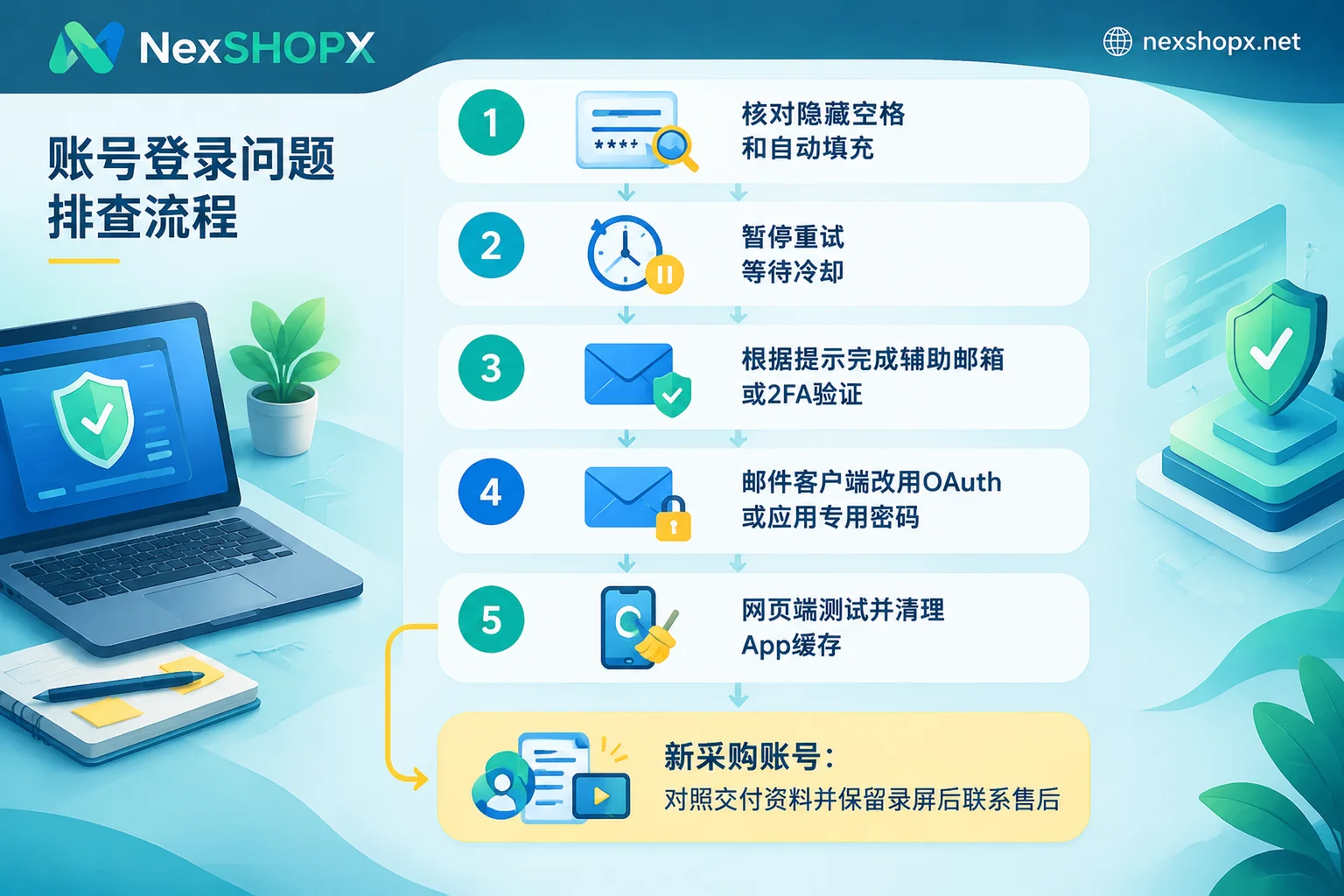
Step 1: Confirm that what you submit is exactly that password
This step is most easily skipped.
Copying and pasting may bring in hidden characters. When you copy an account and password from a spreadsheet, chat history, or delivery document, leading or trailing spaces or line breaks are easily included. They are invisible to the eye, but the platform treats them as part of the password.
Browser autofill may overwrite your input. Chrome and Edge password managers automatically fill in saved passwords based on the domain. If an old password or a password for another account was saved under this domain, the content you just pasted may be replaced before submission.
How to handle:
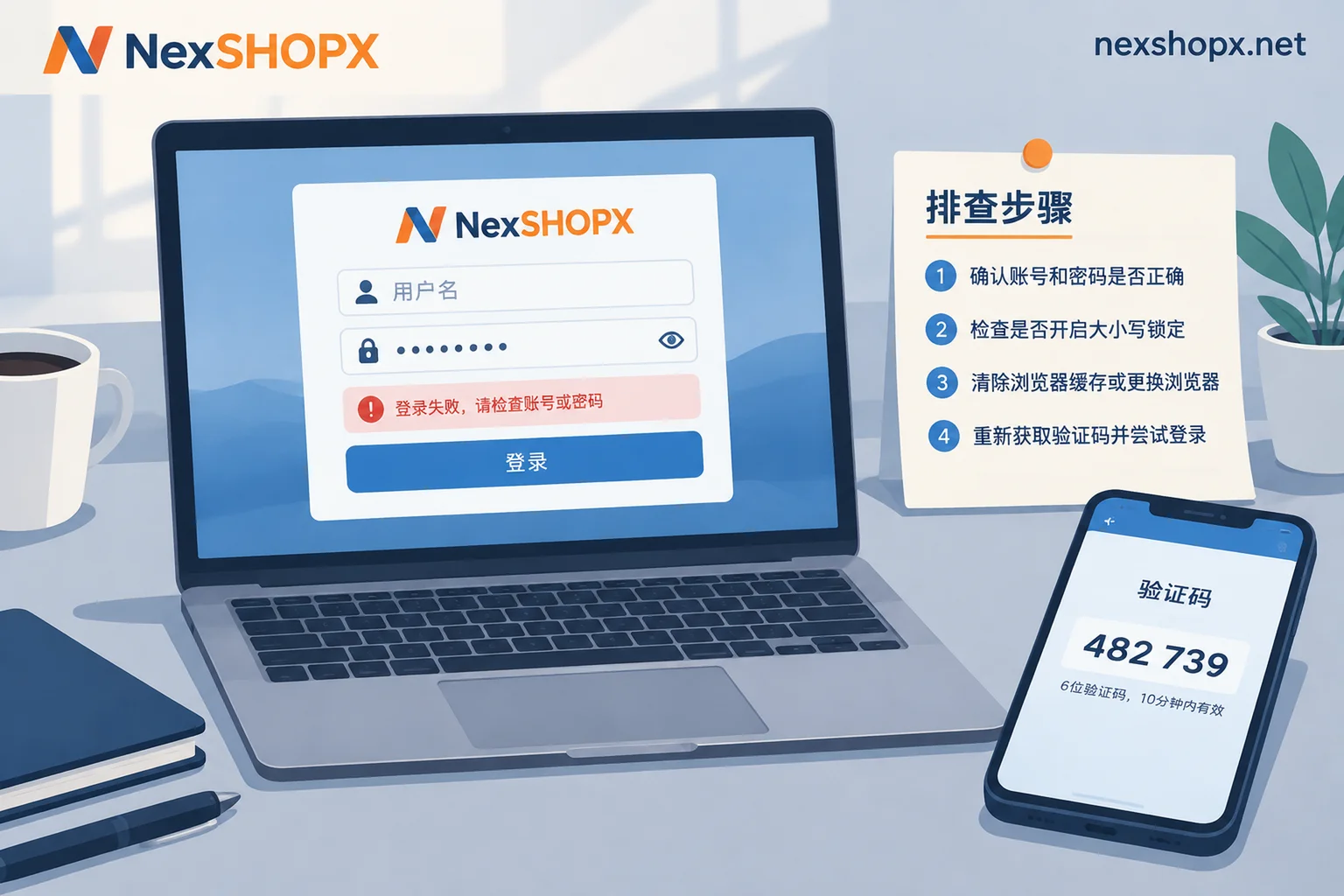
- Paste the password into Notepad first and confirm there are no extra characters at the beginning or end;
- Click the "eye" icon next to the password field to show the plaintext and check it again;
- If necessary, type it manually character by character, and watch out for Caps Lock and the input method's full-width/half-width state.
Step 2: Pause after several consecutive failures
After multiple failed submissions in a short time, the platform may silently lock this login entry. Based on user community feedback, cooldown times range from ten minutes to a day. During the cooldown, even a correct password will continue to show login failure. Repeated retries at this point only extend the restriction and make later verification stricter.
If you have already failed three or four times in a row, stop first. Verify the previous steps clearly, then try again on the same device and network after some time.
Step 3: Read the prompt carefully—many "wrong password" messages are actually verification blocks
When logging in from a new device, a new region, or through a data center node, platforms like Google, Meta, and X may flag the session as suspicious. In this case, even with the correct password, the platform will not let you through directly. The interface may show:
- Google's "Google couldn't verify this account belongs to you";
- A verification challenge page for Meta products like Instagram, or a generic login failure;
- A direct "wrong password" message, but the actual reason is that further verification is required.
Such blocks usually require you to prove your identity using a bound recovery email, SMS code, two-factor authentication (2FA) code, or backup security code. So which verification channel you have on hand is often more critical than the password itself.
To determine whether the error message indicates a ban or an environment-triggered verification, see Is account login failure due to a ban or an environment issue. If the bound verification method is already lost, first read Can I recover my account if I lost the recovery key to confirm what channels you still have.
The normal way to reduce such blocks is: log in to frequently used accounts on a small number of devices and a stable network, and avoid frequently switching regions in a short time.
Step 4: When logging in via email client or script, the main password may not be accepted
When adding a Google or Microsoft mailbox in Outlook, Apple Mail, or Thunderbird, or when using a script to send and receive mail via IMAP, POP3, or SMTP, if the connection does not use modern authentication like OAuth 2.0, the platform will directly reject the main password. The error is often "Password incorrect."
In this case, the web version usually logs in fine with the same password—you can use that to judge. There are two solutions:
- In the client, switch to adding the mailbox via "account login/OAuth";
- If the client does not support it, go to the account's security settings and generate a 16-character App Password to use in the client instead of the main password. Some accounts require enabling two-step verification first to see the generation option.
Step 5: Web login works, app does not—the issue is on the app side
Apps like Instagram and Facebook sometimes have a situation where the web version works normally but the app keeps saying wrong password. Troubleshooting order:
- Open the web version in an incognito browser window. If you can log in, the account and password are fine;
- Clear the app cache, or uninstall and reinstall;
- If the account is linked to other login methods, such as using a Facebook account to log in to Instagram, try that entry.
What to do when first login fails for a newly purchased account
If it is a new account purchased by a team for cross-border stores or social media operations, and the first login fails, the five steps above still apply. In addition, there are several things to note.
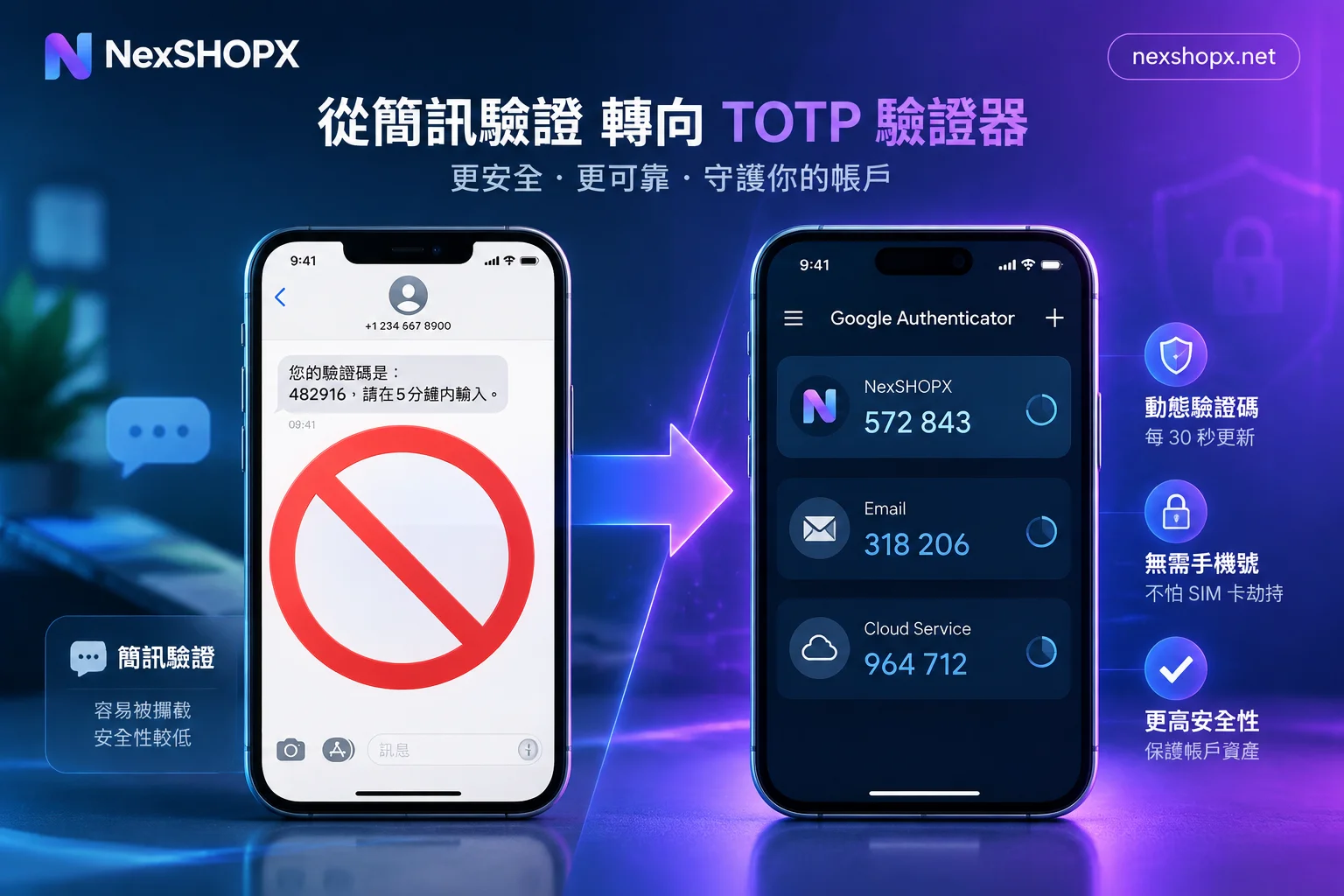
Check the delivery information first. Delivery content for email and platform accounts usually includes not just the account password, but also recovery email and 2FA/TOTP secret. If identity verification pops up during first login, use these materials to complete verification. Do not conclude the account is problematic just because it says "wrong password." It is recommended to import the TOTP secret into a team-managed authenticator immediately after first login. For details, see How to set up two-factor authentication for team shared accounts.
Log in within the first-login time limit. The first-login time limit and warranty period are as stated on each product page. A common rule is a limited time for first login after ordering, and replacement for disables during the warranty period. Delaying login beyond the limit may affect after-sales handling.
If login fails, do not change information first. Some categories prohibit modifying information during the warranty period. If you cannot log in, do not repeatedly retry, and do not rush to change the password or recovery email. Otherwise, you may trigger the temporary lockout mentioned above and may also violate after-sales conditions.
Keep evidence before contacting after-sales. It is best to record the screen during first login, or at least screenshot the error page. When contacting after-sales, provide: order number, login time, complete error message, device and login method used (web, app, or email client), and the troubleshooting steps you have already taken. For what information to prepare, check item by item according to What information to provide when contacting the seller for after-sales on account login failure.
If you have not ordered yet, it is recommended to check the delivery format, first-login time limit, and warranty conditions on the product page before choosing specifications. Taking NexSHOPX as an example, email accounts like Google are distinguished by specifications on the Google category page. The specific delivery content and warranty rules are subject to the corresponding product page. For general after-sales rules, see Terms and warranty statement. In-stock items are automatically delivered after self-service ordering in the mall, while pre-order items are delivered after confirmation by customer service, so schedule your first login according to the actual receipt time.


Comments(0)